Computer Hardware Basics: Input, Process, Output
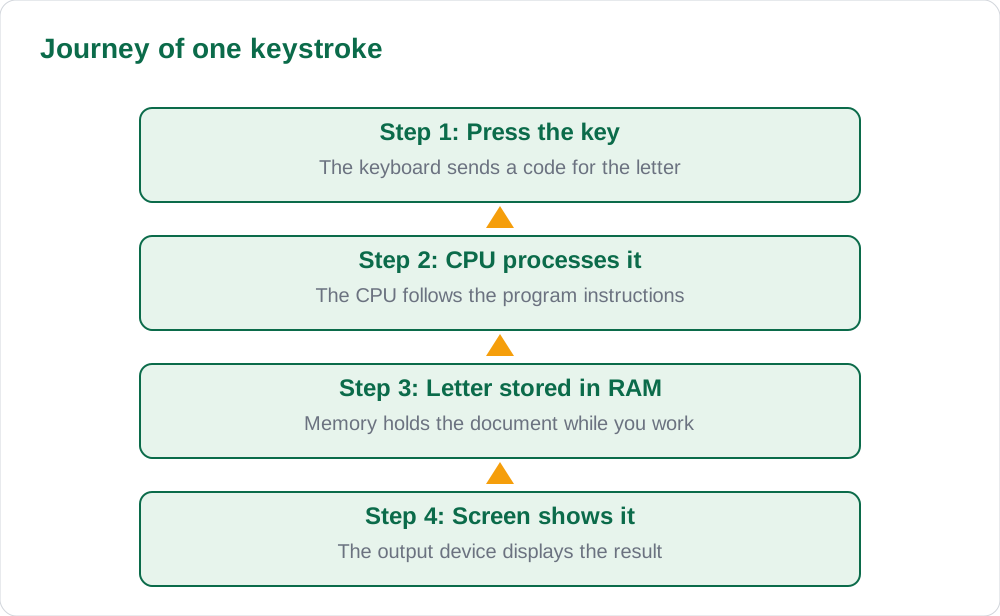
Every computer, from a classroom desktop to a phone in your pocket, works the same basic way: it takes something in, it processes it, and it gives something out. Learning computer hardware basics input process output means learning the parts that do each of these jobs, and how they work together. In this guide, we follow one single keystroke on its journey through a computer. You press a letter key, the computer understands it, stores it, and shows it on the screen. Once you can follow that journey, every other hardware topic becomes much easier to understand.
What Is Computer Hardware?
Hardware is everything you can touch on a computer system: the keyboard, the screen, the box that holds the circuits, the mouse, and the cables that join them. Software is the opposite: the programs and instructions you cannot touch, such as a word processor or a game. A computer needs both. Hardware without software is a silent box that does nothing, and software without hardware has nowhere to run.
The parts of a computer system fall into four groups. Input devices send information into the computer. The processor and memory work on that information. Storage keeps it for later. Output devices show the result to you. When you learn a new device, ask one question first: which of these four jobs does it do? A printer is output, a microphone is input, and a USB drive is storage. That one question organises the whole topic.
Input Devices: How Information Enters
An input device turns something a human does into signals the computer can understand. When you press a key, the keyboard sends a code for that letter. When you move a mouse, it sends position signals. A microphone turns sound waves into digital signals, a scanner turns a paper page into a picture, and a camera turns light into a photo. Different inputs, same job: getting information in.
Pupils often mix up input and output devices, so here is a simple test. If the device sends information toward the computer, it is input. If the computer sends information toward you through the device, it is output. Some devices do both, such as a touchscreen, which takes your touch as input and shows pictures as output. Most classroom devices, though, do one job clearly.
- Keyboard: types letters, numbers, and commands into the computer.
- Mouse: points, clicks, and drags to select and move things on screen.
- Microphone: records speech and sound for calls, recordings, and voice notes.
- Scanner and camera: turn paper pages and real scenes into digital pictures.
Processing: The CPU and Memory at Work
The central processing unit, or CPU, is the part that follows instructions and does the calculations. It is sometimes called the brain of the computer, but a better picture is a very fast worker following a recipe: it fetches an instruction, works out what it means, carries it out, and moves to the next one. It does this millions of times every second, which is why a computer can open a document, check spelling, and play music at the same time without seeming to pause.
Memory works beside the CPU. RAM, or random access memory, holds the programs and data the computer is using right now, and it is fast but temporary: when the power goes off, RAM forgets. That is why you must save your work. The CPU is the worker, RAM is the desk where the work is spread out, and storage, which we meet next, is the cupboard where finished work is filed away safely.
Now follow the keystroke. You press the letter A. The keyboard sends a code to the CPU. The CPU asks the word processor what to do with it, the program says to add the letter to the document, and the CPU places it in RAM. In a fraction of a second, the screen shows the letter A. One keystroke, four parts working together, and you never notice the teamwork.
Output Devices: Seeing and Hearing Results
Output devices turn computer signals back into something your senses can use. A monitor shows words and pictures, speakers and headphones play sound, and a printer puts words and pictures onto paper. Each one is the last step in the journey that began with your input. If nothing appears on the screen after you type, something in that chain has broken, and checking each link is how computer users find faults.
Good output habits matter as much as the devices themselves. Sit at a comfortable distance from the screen, keep the brightness gentle, and take short breaks from looking at the screen. When you print, check the preview first so you do not waste paper on a page that is cut off or badly spaced. A careful user gets better results from the same equipment than a careless one.
Storage: Where Work Is Kept
Storage keeps your work after the power goes off. A hard disk drive stores large amounts on spinning disks inside the computer, a solid state drive stores it on chips with no moving parts and is faster, and a USB flash drive carries files between computers. Cloud storage keeps files on computers far away, reached through the internet. Each type trades speed, size, price, and portability against the others, which is why computers often use more than one kind.
The golden rule of storage is simple: keep two copies of anything important. Save your school assignment on the computer and on a USB drive, or in a safe cloud folder your teacher approves. Computers can be lost, stolen, or damaged, but a second copy means one accident cannot erase a whole term of work. Name your files clearly, with the subject and date, so you can find them again without opening every file.
- Save early and save often, especially before closing any program.
- Keep a second copy of important school work in a different place.
- Use clear file names, such as Islamiat-Assignment-October.
- Ask a teacher before storing school work on unfamiliar websites.
AI Help: Muse AI
Muse AI is Meta's personal AI assistant, and it can help with labelling a diagram of a computer system from a description you give it. Muse AI does not give official Sindh Textbook Board answers — always verify against your Sindh Textbook Board book and your teacher.
Join Muse with invite code LTGSWD — in the Muse app, go to Settings > Redeem token and enter the code.
Disclosure: LTGSWD is the author's Muse invite code.
5 key points you must know
- Hardware is the parts you can touch; software is the programs you cannot.
- Every computer system follows input, process, output, with storage for later.
- The CPU follows instructions; RAM holds work in progress; storage keeps it.
- A device is input if it sends information toward the computer.
- Keep two copies of important school work in different places.
Frequently asked questions
What is the difference between RAM and storage?
RAM holds the programs and data the computer is using right now, and it forgets everything when the power goes off. Storage keeps your files after the power goes off, so your saved work is still there tomorrow.
Is a touchscreen an input device or an output device?
Both. It takes your touch as input and shows pictures and words as output. Devices that do both jobs are called input-output devices.
Why does the computer forget my work when the power goes off?
Because unsaved work lives in RAM, which is temporary. Saving copies your work into storage, which is permanent. Save early, save often, and keep a second copy of important work.
Which device is most important in a computer?
No single device does the whole job. Input, processing, memory, storage, and output all work together, so a weakness in any one of them slows down the whole system.
Solved notes — preview free
These guides work best with the solved exercises. Preview the solved notes free on this website — 119 solved notes for Classes 6–10 in Sindhi, Urdu, English and Arabic medium. Or browse the full solved notes catalogue for your class and medium. New solved notes are added regularly — check the catalogue for coming-soon books.